How to Use a GameCube Controller on Steam
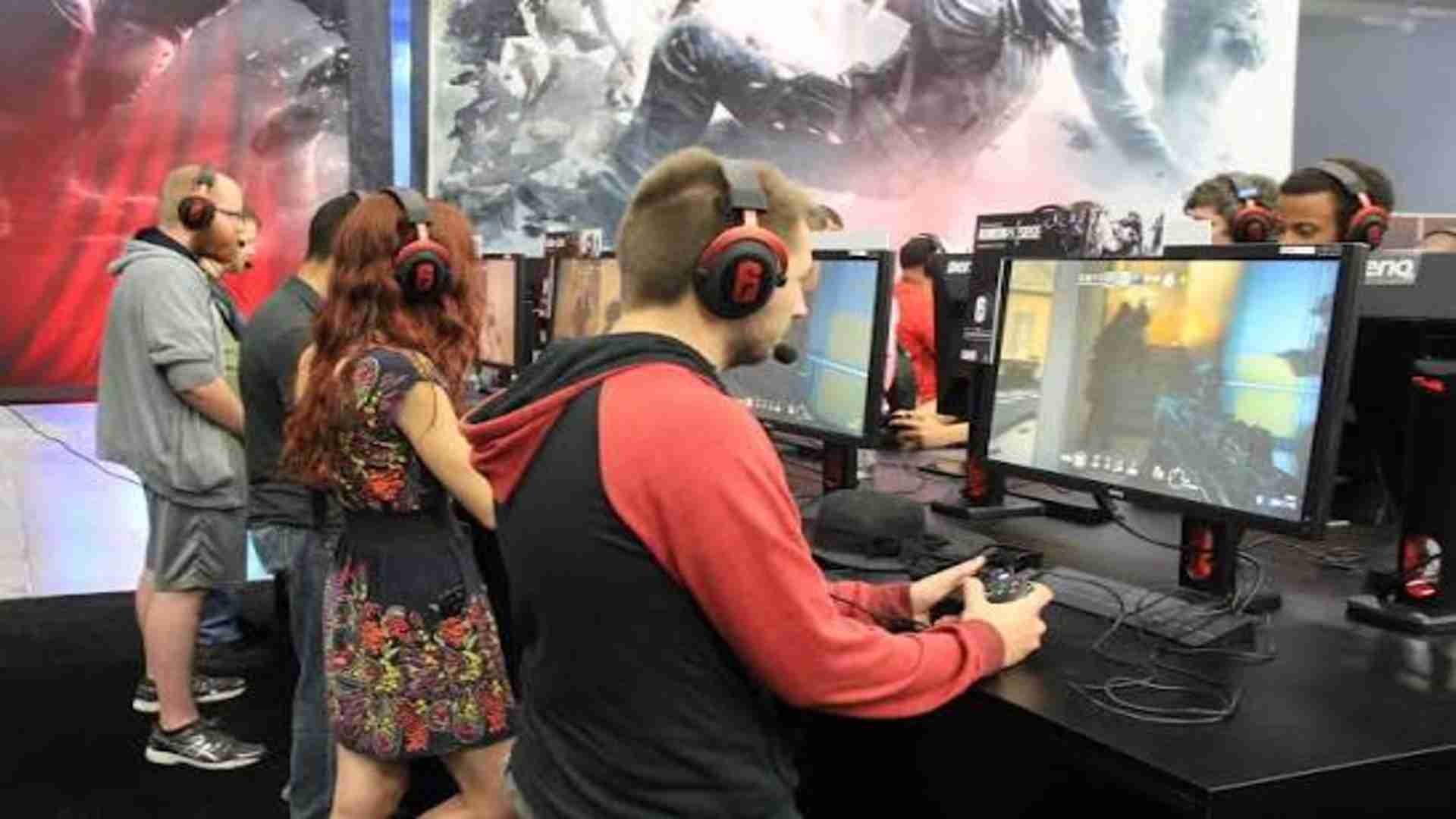
Connecting a GameCube controller to Steam allows PC gamers to enjoy their favorite modern and retro titles with an iconic layout. Whether you want to play competitive fighting games or casual platformers, Steam provides extensive hardware support for custom input setups. Understanding how to set up this classic controller ensures a seamless gaming session on your computer.
Choosing the Right Adapter for PC
To hook up an original GameCube controller to your PC, you will need a USB adapter. Official Wii U or Switch adapters work well, though popular third-party alternatives like Mayflash offer great compatibility. Make sure your adapter is switched to PC mode if a physical toggle switch is present on the device.
Plugging the adapter into a direct USB port on your motherboard or front panel guarantees stable power delivery and reduced input latency. Avoid using unpowered USB hubs, as they can cause intermittent disconnections during intense gameplay. Once connected, your operating system should recognize the adapter automatically without requiring extra software.
Enabling GameCube Controllers in Steam Settings
Open the Steam desktop client and navigate to the main settings menu to begin the configuration process. Select the Controller tab to view all available gamepad configuration options integrated directly into Steam Input. Toggle on support for generic controllers or dedicated gamepads so Steam can read the adapter correctly.
Steam Input acts as a translation layer between non-standard controllers and modern games. If your adapter uses specialized vJoy drivers, Steam will treat the gamepads as standard XInput controllers. Testing the inputs within Steam settings helps verify that every button click and analog movement registers properly.
Mapping Buttons and Calibrating Analog Sticks
Because GameCube controllers feature an asymmetrical button layout with analog triggers, proper button mapping is essential. Access the Steam Input controller configuration menu to map the face buttons, D-pad, and analog sticks to standard Xbox layout equivalents. Be sure to calibrate the analog deadzones so your character does not drift during movement.
Configuring the L and R triggers requires extra attention due to their unique analog-to-digital click mechanism. You can set the initial pull to perform analog actions like aiming and assign the full press click to secondary functions. Spending time tweaking these deadzones ensures maximum precision across different game genres.
Optimizing In-Game Profiles and Custom Layouts
Steam allows users to save, share, and download custom controller layouts for individual games in your library. Browsing community profiles created by other players often saves time when setting up complex control schemes. You can easily modify existing community templates to better match your preferred playstyle.
For games requiring more buttons than the original GameCube pad offers, consider setting up button combinations or mode shifts using Steam Input. Utilizing chorded presses allows you to assign extra shortcuts without compromising core gameplay actions. Testing your setup in dynamic fighting titles or platformers ensures reliable responsiveness under pressure.